
2.3.7 - Control Board
For Reefscape, due to the large number of locations that the robot could score in, we knew that we couldn’t just have another controller for our operator. We needed something that had substantially more inputs than a controller. This lead us to look at button boards, that we see many teams using things such as:
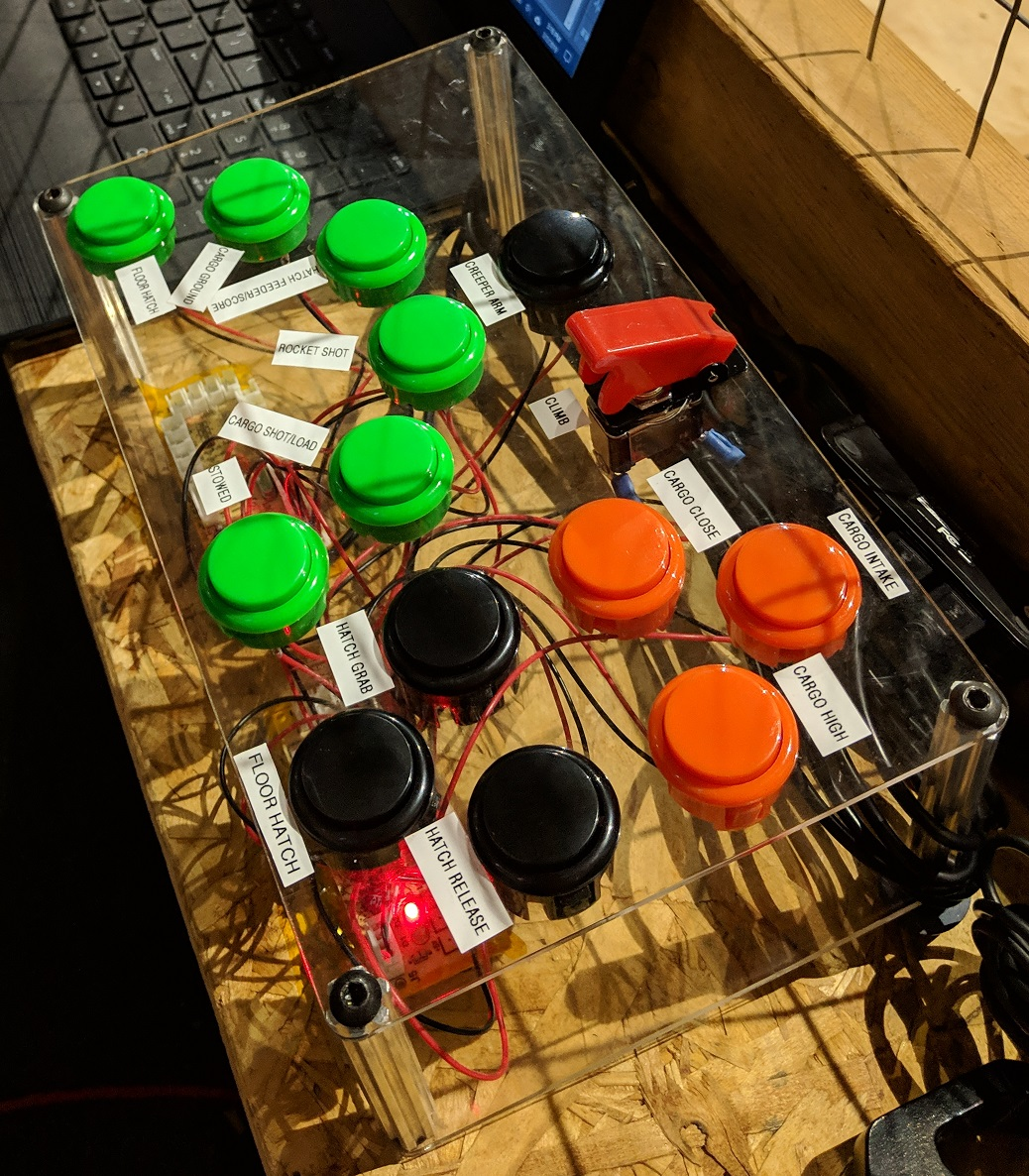
A physical button board was an option, but we wanted to explore solutions ‘evergreen’ solutions. This lead us to creating the app we internally refer to as ‘Control Board’
What is Control Board?
Section titled “What is Control Board?”Control Board is a desktop app written in the Flutter framework built on Dart that interacts with the robot by pushing named values to network tables1 .
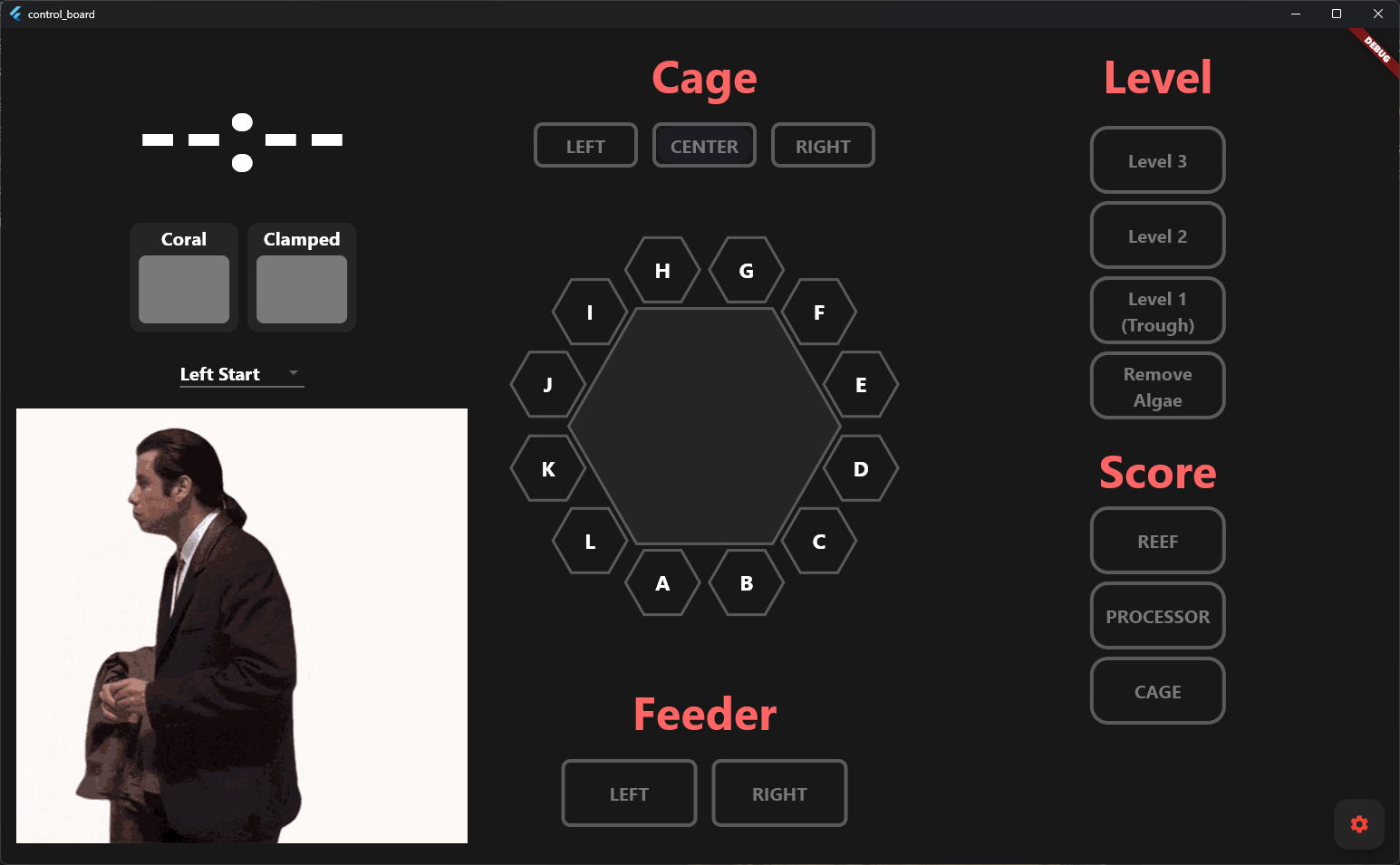
How does the robot use Control Board Values?
Section titled “How does the robot use Control Board Values?”In our 2025 code, we have a folder \ControlBoard. We use the ControlBoardHelpers.java to get and set the network table values for each of the control board items:
public static int getLevel() {  return (int) getEntry("/ControlBoard/Reef/Level").getDouble(0);}
  public static void setLevel(int value) {  getEntry("/ControlBoard/Reef/Level").setDouble(value);}
// More Control Board Items...
We use these values to create a RobotConfiguration which contains information on where each part of the robot should be when traveling and scoring, as well as what End Effector state we are using to score in:
public class RobotConfiguration {    public final List<Pose2d> pathPoses;    public final double finalArmAngle;    public final double travelArmAngle;    public final double finalWristAngle;    public final double travelWristAngle;    public final EndEffectorState startEndEffectorState;    public EndEffectorState finalEndEffectorState;
    public RobotConfiguration(        List<Pose2d> pathPoses,        double finalArmAngle,        double travelArmAngle,        double finalWristAngle,        double travelWristAngle,        EndEffectorState startEndEffectorState,        EndEffectorState finalEndEffectorState) {
    this.pathPoses = pathPoses;        this.finalArmAngle = finalArmAngle;        this.travelArmAngle = travelArmAngle;        this.finalWristAngle = finalWristAngle;        this.travelWristAngle = travelWristAngle;        this.startEndEffectorState = startEndEffectorState;        this.finalEndEffectorState = finalEndEffectorState;    }}
To create a RobotConfiguration we call the static functions inside RobotConfigProvider.java. Depending on the criteria gathered from the control board, referenced like:
String reefLocation = ControlBoardHelpers.getReefLocation();int reefLevel = (int) ControlBoardHelpers.getLevel();we can return a RobotConfiguration generated from those control board values
return switch (reefLevel) {  case ControlBoardConstants.REEF_LEVEL_ALGAE ->    createAlgaeRemovalConfiguration(reefLocation, currPose);
  case ControlBoardConstants.REEF_LEVEL_TROUGH ->    createTroughScoringConfiguration(reefLocation, currPose);
  case ControlBoardConstants.REEF_LEVEL_2 ->  createLevel2ScoringConfiguration(reefLocation, currPose, currHeading);
  case ControlBoardConstants.REEF_LEVEL_3 ->    createLevel3ScoringConfiguration(reefLocation, currPose);
  default -> null;};
We then pass the RobotConfiguration back to the RobotSubsystem where we integrate it into our state machine.
switch (robotState) { case T_TRAVELING: arm.setTargetAngle(config.travelArmAngle); wrist.setTargetAngle(config.travelWristAngle); if (currentPathCommand == null || !currentPathCommand.isScheduled()) { Command otfPath = drivebase.pathfindToOTFPath(config.pathPoses); Command driverCancel = new WaitUntilCommand(() -> RobotContainer.isDriverInputDetected()); currentPathCommand = new ParallelRaceGroup(otfPath, driverCancel) .andThen(new InstantCommand(() -> { drivebase.setState(DriveState.USER_CONTROLLED); }, drivebase)); currentPathCommand.schedule(); } robotState = RobotState.P_PATHING; break; // More Robot State Logic...What else does Control Board do?
Section titled “What else does Control Board do?”Control board handles the auto selection, while showing a gif of the selected auto, so that you can preview what the robot intends to do. We can also add Boolean viewers, such as whether or not we have a coral and the clamp state of the climb. We included a game time so the operator can make decisions based on how much time remains in the match.
Footnotes
Section titled “Footnotes”-
Network Tables is an FRC / WPILib tool used to send values to and from the robot. It is how we track values on FRC dashboards such as Elastic ↩
Answered: 0 / 0 (0%)